
An app deployed from Git can have its own databases. FlyNode creates them next to the app, sets the connection variables for you, and keeps them private: they have no public address, and only your own apps on FlyNode can reach them.
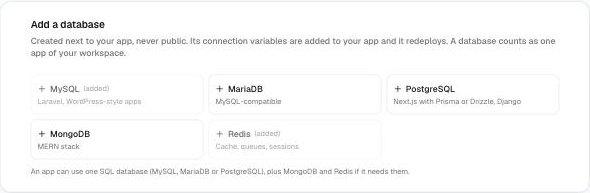
What you can add
- MySQL and MariaDB, for Laravel and similar apps.
- PostgreSQL, for Next.js with Prisma or Drizzle, Django and Rails.
- MongoDB, for the MERN stack.
- Redis, for cache, sessions and queues.
An app can use one SQL database (MySQL, MariaDB or PostgreSQL), plus MongoDB and Redis. Each database counts as one app of your Workspace, so an app with MySQL and Redis uses three of your apps. A database needs a Workspace with at least 1 GB of memory (512 MB for Redis).
Add one when you deploy
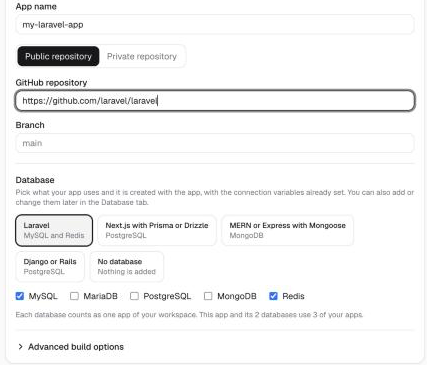
In the Custom app form, the Database section has a preset for common stacks (Laravel, Next.js, MERN, Django or Rails) and a checkbox for each database. Pick what your app uses and press Deploy. The databases are created first and their variables are set before the app starts, so the first build already has them.
Add one to a running app
Open the app, go to the Database tab and press the database you want. FlyNode creates it, sets the variables on your app and redeploys it.
The variables FlyNode sets
- MySQL, MariaDB, PostgreSQL:
DATABASE_URL,DB_CONNECTION,DB_HOST,DB_PORT,DB_DATABASE,DB_USERNAMEandDB_PASSWORD. - MongoDB:
MONGODB_URIandMONGO_URL. - Redis:
REDIS_URL,REDIS_HOST,REDIS_PORTandREDIS_PASSWORD.
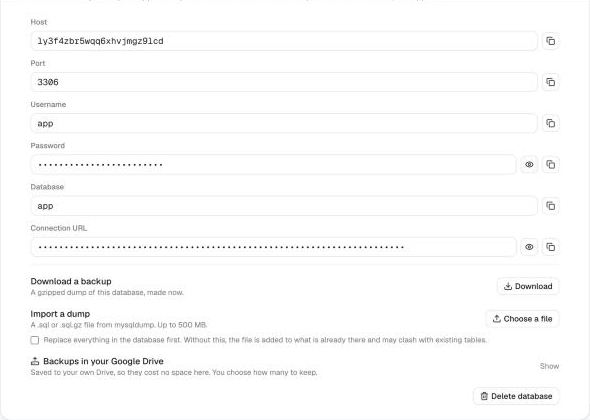
Each database card on the Database tab also shows the host, port, user, password and database name. The host name only works from your own apps on FlyNode.
Import a dump
On the database card, press Choose a file under Import a dump. The limit is 500 MB. The file is loaded in the background and the result appears under the button.
- MySQL and MariaDB: a
.sqlor.sql.gzfile frommysqldump. - PostgreSQL: a
.sql,.sql.gzor custom-format.dumpfile frompg_dump. It loads as one transaction, so a file that fails leaves the database as it was. - MongoDB: a
.archiveor.archive.gzfile frommongodump --archive. - Redis: cannot import a file here.
Tick Replace everything in the database first to make the database match the file exactly. Without it the file is added to what is already there and may clash with existing tables.
Download a backup
Press Download to get a gzipped dump of the database, made at that moment. Keep it, or load it somewhere else with the database's own tools.
Backups in your Google Drive
Open Backups in your Google Drive on the card and connect your Google account. FlyNode saves each backup to a FlyNode Backups folder in your own Drive, so it uses your Drive space and none of ours, and it can only see the files it made itself.
- Back up now saves one at once.
- Automatic backups run weekly, or daily on Medium and larger Workspaces, at the time and in the time zone you choose. You set how many copies to keep, and older ones are deleted from your Drive.
- Restore loads a saved backup back into the database and replaces what is there. Redis backups can be downloaded from Drive but not loaded back here.
Delete a database
Press Delete database on its card and confirm. The database and all its data are removed for good, and the app stops counting it. The variables stay on your app until you change or remove them. Backups already in your Google Drive stay there.
Good to know
- A database is created with a fixed memory allowance (512 MB, or 256 MB for Redis). It shares your Workspace's RAM and CPU like your apps do.
- If your data is bigger than 500 MB, or you want to keep a managed service, deploy with No database and set the connection variables yourself.
Next steps
Still stuck?
Open a support ticket from your dashboard and include the container name.