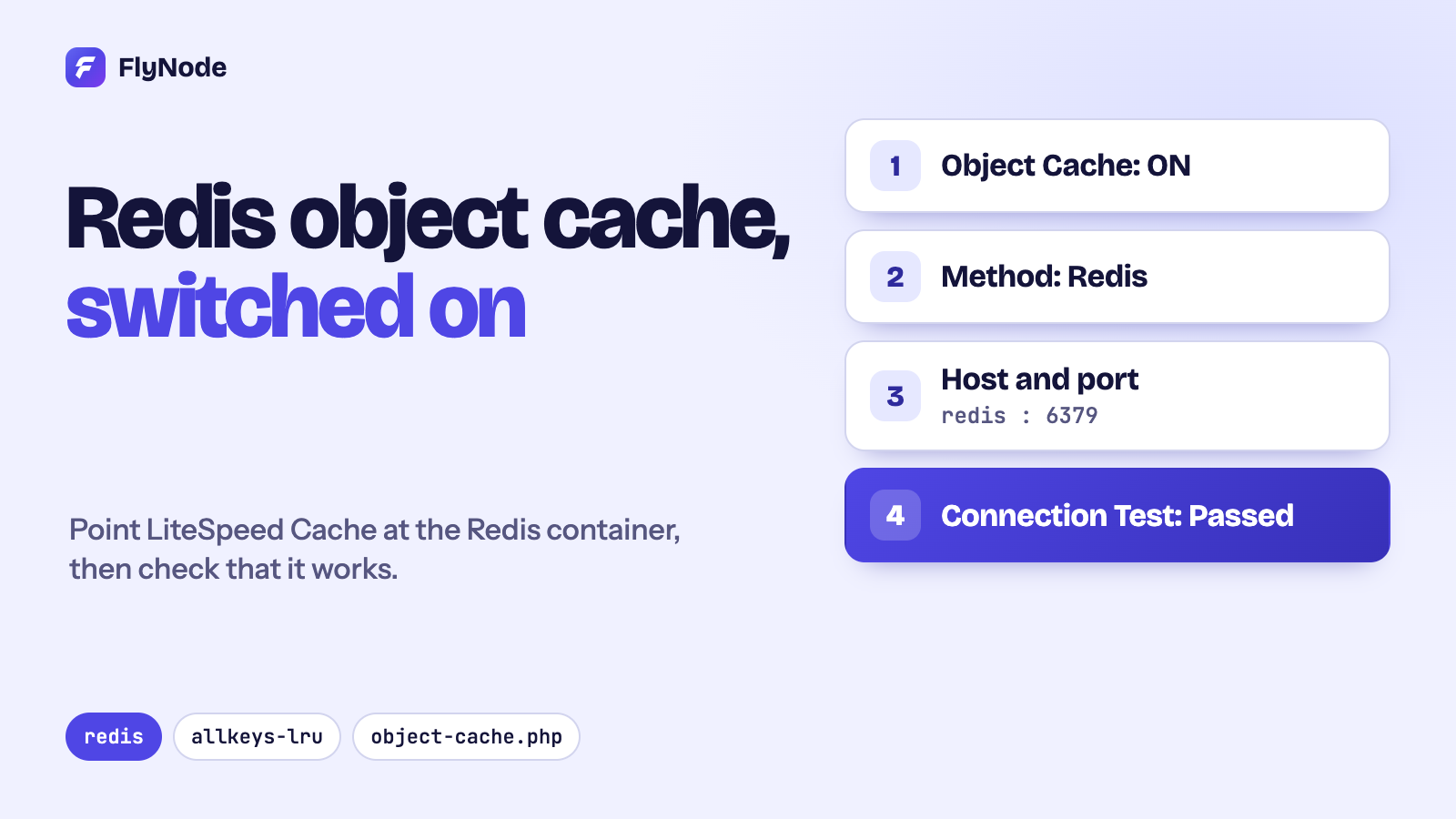
The short answer: Every FlyNode WordPress site comes with a Redis container, but WordPress does not use it until you turn it on. Open LiteSpeed Cache > Cache > Object, switch Object Cache to ON, choose Redis as the method, type redis as the host and 6379 as the port, and save. The Connection Test in that box should say Passed. In our test on a fresh stack, one uncached page went from 28 database SELECT queries to 2. Redis is capped by your plan, drops the least recently used items when it is full, and the site keeps working if Redis ever stops.
Last time we looked at LiteSpeed Cache, which stores whole finished pages. This article is about the other cache on your site, the one that works on small pieces of data. It is easy to turn on, but a few details are not obvious, and one of them is the host name. We tested everything below on a fresh FlyNode WordPress stack in Docker, so the numbers and screens are real.
Page cache and object cache, in plain words
A page cache keeps the finished HTML of a page and hands it to the next visitor without running WordPress at all. That is the fastest thing you can do, and it is what LiteSpeed Cache does for visitors who are not logged in.
An object cache sits one level lower. While WordPress builds a page, it asks the database a lot of small questions: what are the site options, which posts go on this page, who is this user. An object cache remembers the answers in memory, so the next time WordPress asks the same question, it gets the answer from Redis and the database is left alone.
Here is the part that is easy to miss. If a page is already served from the page cache, WordPress never runs, so the object cache has nothing to do. It helps with everything the page cache cannot serve: logged-in users, the WordPress admin, carts and checkouts, search results, and the first request to any page after it was purged. If your site is a small brochure that is almost all page cache hits, you will not notice much. If it has members, a shop or a busy admin, you will.
What FlyNode gives you
Next to WordPress and the database, your site has a third container called redis. We read its settings from the template and then asked the running container, so this is what is actually there:
- It is the standard Redis image. No port is published for it, so only your site's own containers reach it, by the name
redison port 6379. - Its memory is capped. On FlyNode the cap follows your plan, at about 6% of the plan's memory and never below 32 MB or above 1 GB. In our test stack it was 64 MB, which is what the template uses when nothing else is set.
- When it is full it removes the items used least recently (the policy is
allkeys-lru), so it never runs out of room and never blocks WordPress. - It saves nothing to disk. It is a cache, not a store, and that is deliberate.
The catch: WordPress is not using it yet
Open wp-config.php on a new site and you will find four lines that start with WP_REDIS_, including WP_REDIS_HOST set to redis. It looks like everything is wired up. It is not, and this is worth knowing.
Those lines are read by a separate plugin called Redis Object Cache, which FlyNode does not install. The LiteSpeed Cache plugin ignores them. It has its own settings, and out of the box they are off and point somewhere else: the method is Memcached, the host is localhost and the port is 11211. That is what we saw on a fresh install of LiteSpeed Cache 7.9.2. If you only flip the switch to ON, the plugin looks for Memcached on the same machine, finds nothing, and the Connection Test says Disabled or Failed.
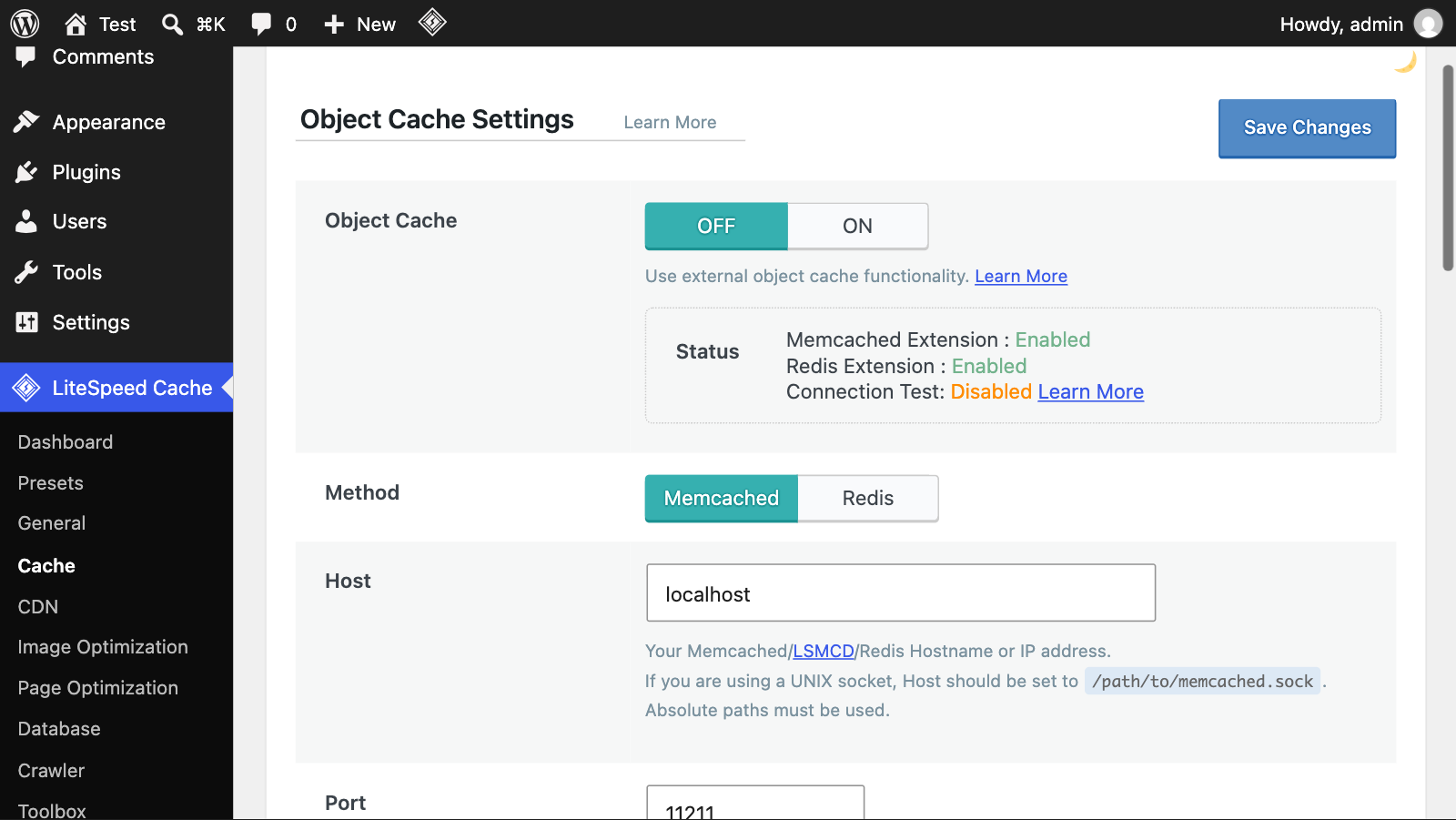
Turn it on
- In WP-Admin, open LiteSpeed Cache and then Cache, and click the Object tab.
- Set Object Cache to ON.
- Set Method to Redis.
- Set Host to
redisand Port to6379. - Leave Username, Password and Redis Database ID as they are. The Redis container has no password, because nothing outside your site can reach it.
- Press Save Changes.
Then look at the Status box at the top of the tab. It lists whether the Memcached and Redis extensions exist in PHP, and then the Connection Test. The PHP Redis extension was already there on our stack. After saving it should read Passed:
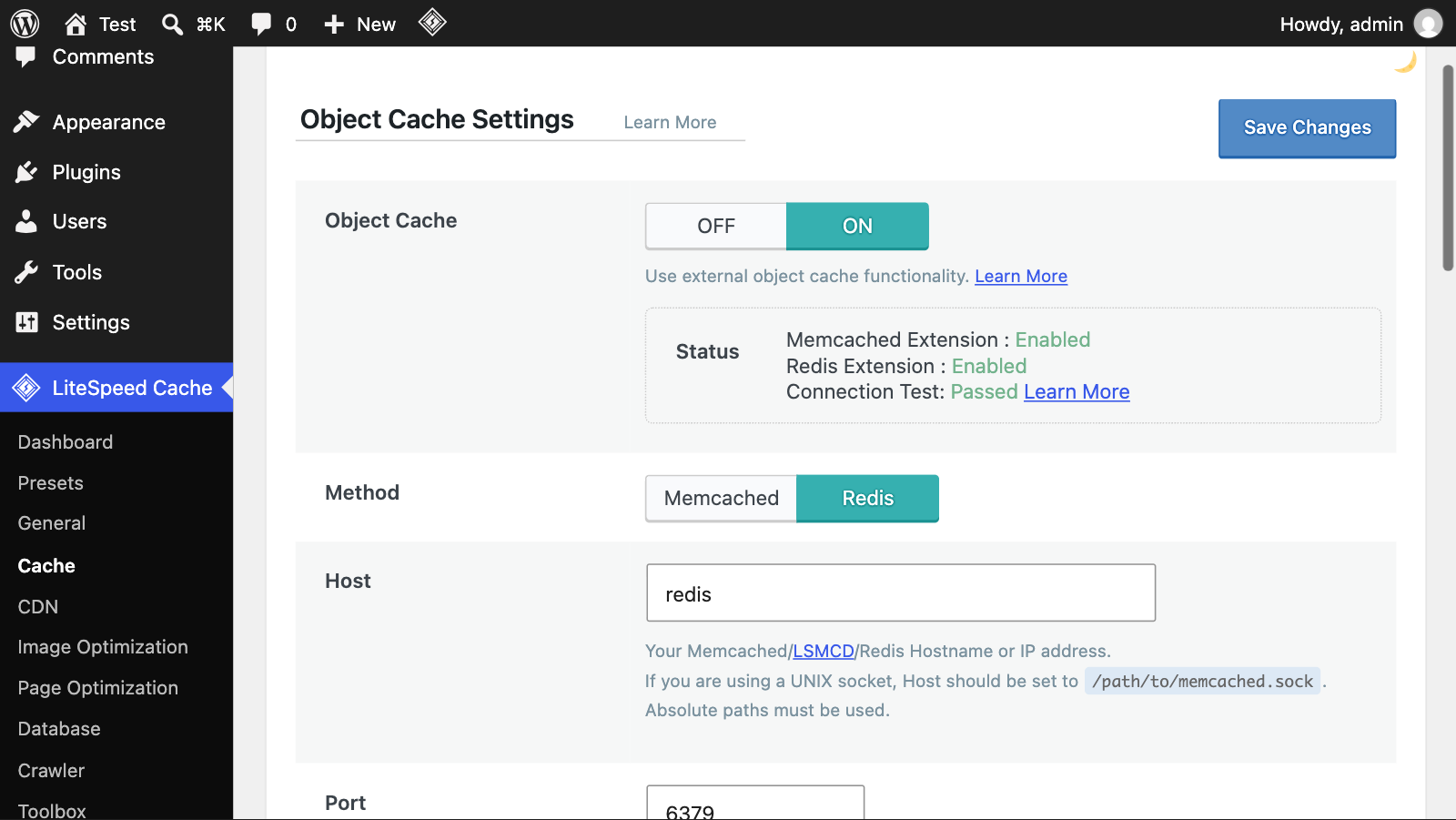
Two other settings on the tab are on by default and are fine for most sites: Persistent Connection keeps the connection to Redis open between requests, and Cache WP-Admin lets the admin area use the object cache as well. The admin is usually where it helps most.
Behind the scenes the plugin writes one file, wp-content/object-cache.php. That file is what tells WordPress to use an external cache. We checked that it did not exist before, appeared when we saved, and was gone again when we switched the cache off.
Check that it really works
A green Passed is a good sign, but you can see the cache working with two commands. Open the app page, go to the Terminal tab, and pick the redis container. Load a few pages of your site first, in a private window, so there is something to count. Then run:
redis-cli dbsize
redis-cli info stats | grep keyspace
redis-cli info memory | grep -E 'used_memory_human|maxmemory_'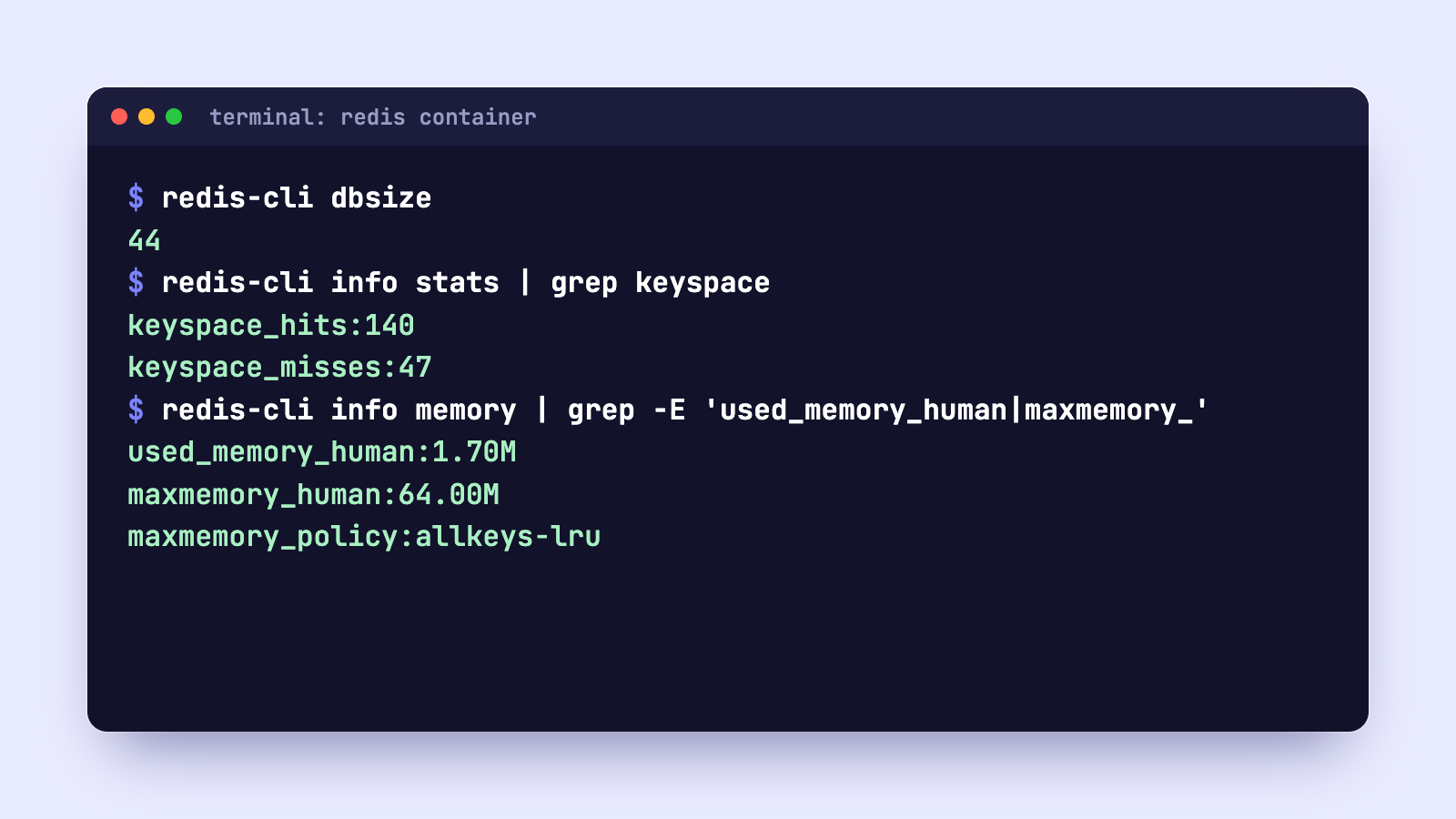
On our test site, after five page loads, Redis held 44 keys, with 140 hits and 47 misses. That is about three answers out of four coming from memory, on a bare site that had only just started filling the cache. It used 1.7 MB of its 64 MB. A number above zero in dbsize and a hit count that keeps growing as you browse is the proof you are looking for. If dbsize stays at 0, WordPress is not talking to Redis, and you should go back to the host and port.
If you want to watch it happen, this command prints everything WordPress asks Redis for during the next three seconds. Load a page in another tab while it runs:
timeout 3 redis-cli monitor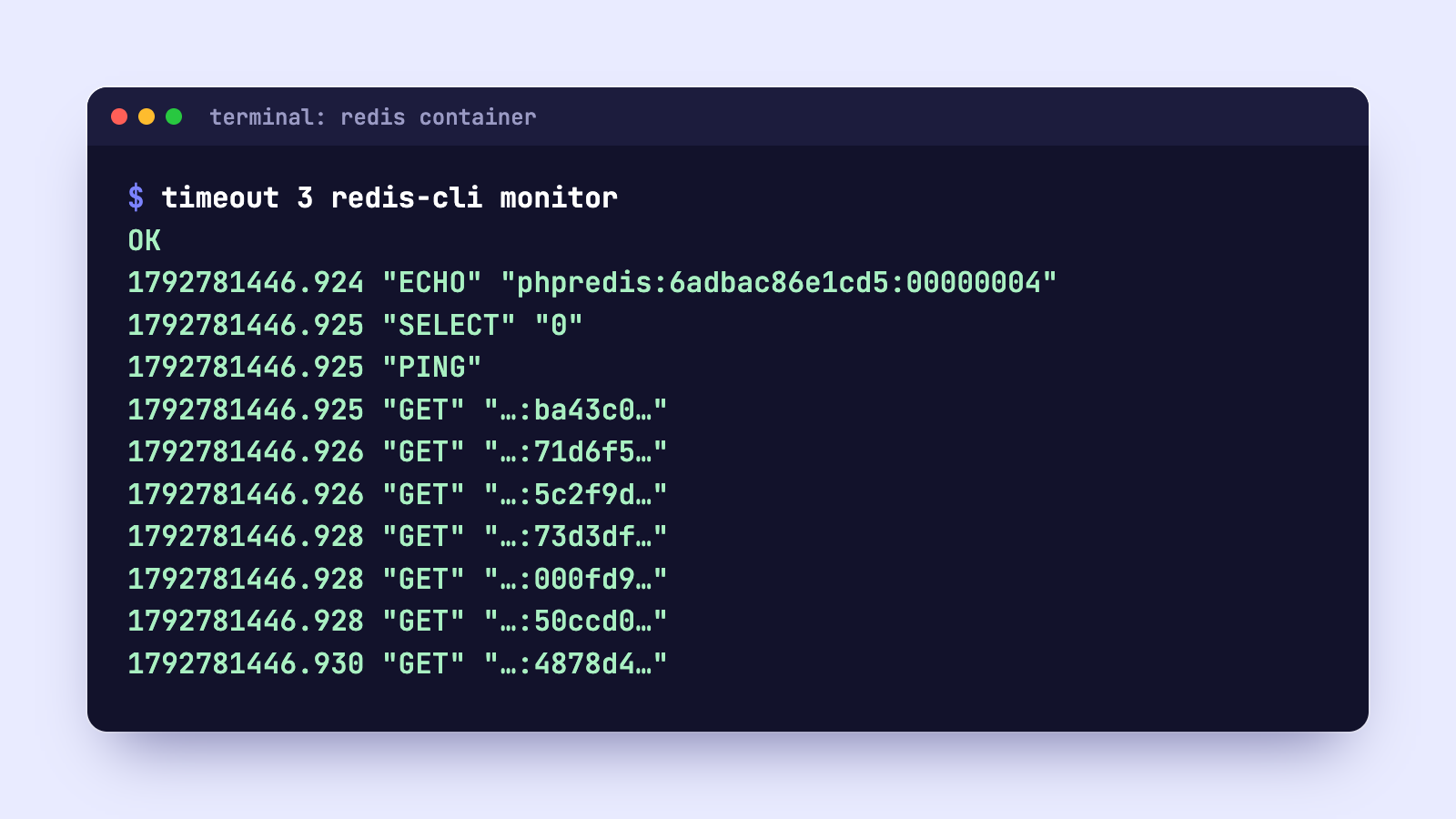
Each GET is WordPress asking for one stored answer. The plugin turns the key names into long hashes, so you cannot read what each one is. That is normal. We shortened the keys in the picture to fit.
What it saved in our test
We measured the effect on the database directly. MariaDB keeps a counter of how many SELECT queries it has run. We read it, loaded one page that is never page-cached (a search result), and read it again, once with the object cache off and once with it on:
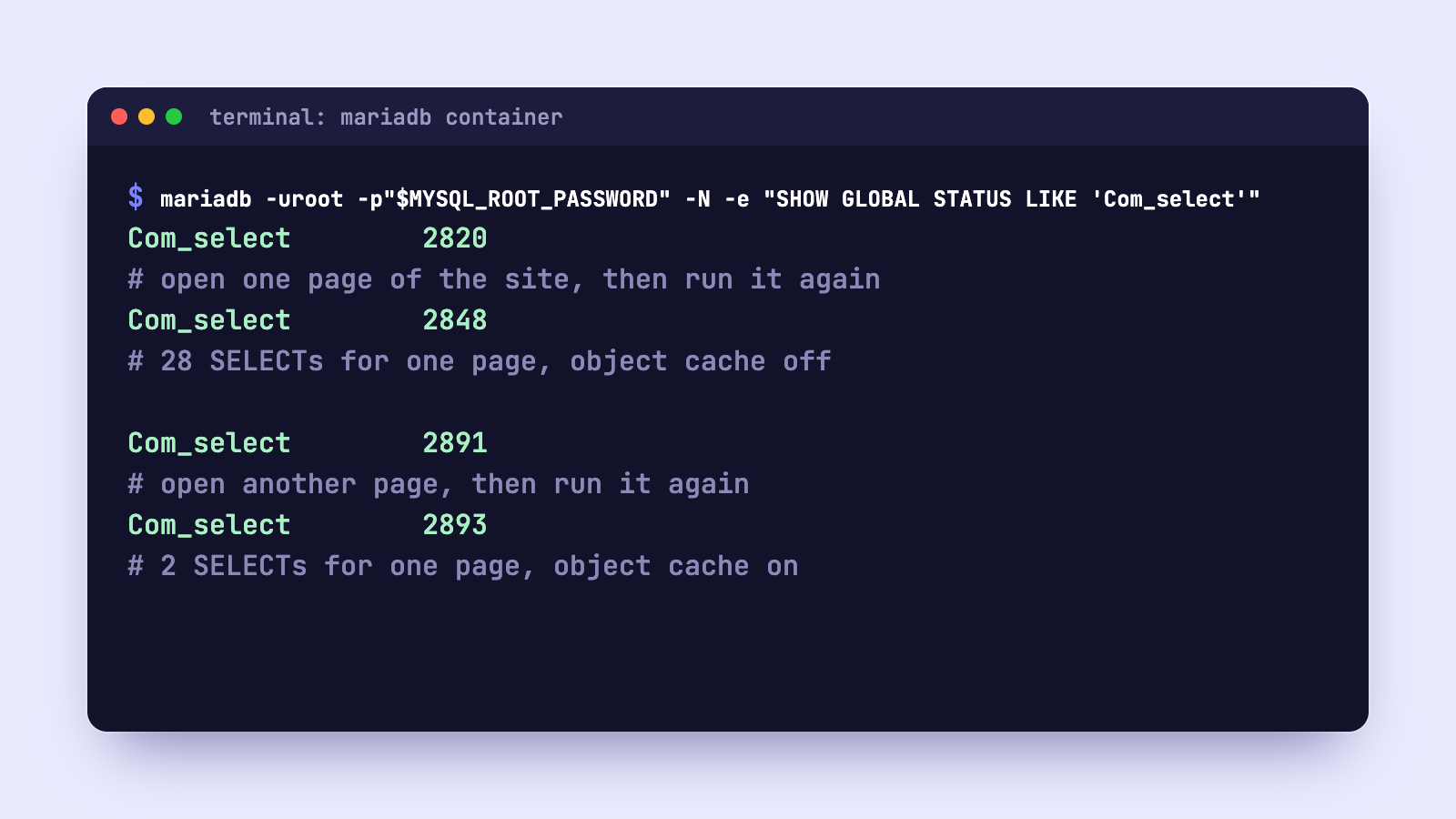
With the object cache off, that one page cost the database 28 SELECT queries. With it on, it cost 2. The command to read the counter is:
mariadb -uroot -p"$MYSQL_ROOT_PASSWORD" -N -e "SHOW GLOBAL STATUS LIKE 'Com_select'"Run it in the mariadb container. We also timed the page. On our test site it came back in about 23 milliseconds either way, because a bare WordPress with no plugins asks very little of the database. We are telling you that on purpose. The saving is real, but it is the database that gets lighter, and how much that matters grows with your site. A shop with many plugins might ask for hundreds of answers per page, and a busy site feels it when the database is not asked the same thing again and again. Measure your own site before you promise yourself a number.
Memory: what happens when it fills up
A cache that never forgets would eventually use all its memory. This one forgets on purpose. When Redis reaches its cap, it removes the items that were used longest ago to make room for new ones. WordPress just asks again, gets the answer from the database, and Redis stores it afresh. Nothing breaks, and nothing needs clearing by hand.
Because the cap follows your plan, a bigger plan gets more room, and a plan change is applied to the running Redis for you. If your hit count looks low and used_memory_human is sitting close to maxmemory_human, the cache is full and throwing away useful items, and a larger plan is the fix.
Redis also writes nothing to disk here. We restarted the container and the key count was 0 straight away, and then filled up again as pages were loaded. That is fine for a cache. It does mean the site is a little slower for a minute after Redis restarts, such as when your Workspace restarts, while the cache warms up again.
If Redis stops, does the site go down?
We stopped the Redis container while the object cache was on and loaded pages. They came back normally with a 200 status. The first request after the stop was slower, at about a quarter of a second against 30 milliseconds, while WordPress noticed Redis was gone, and then the pages were fast again, working straight from the database. After we started Redis again the site picked it up without our touching a setting. So Redis is something that makes the site faster, not something it depends on.
Turning it off
Switch Object Cache back to OFF on the same tab and save. The plugin removes object-cache.php and WordPress goes back to asking the database directly. Redis keeps running, empty and unused, which costs very little.
What about the Redis Object Cache plugin?
You will see it recommended in many guides. It does the same job and is a perfectly good plugin. It is also the one that reads the WP_REDIS_ lines FlyNode puts in wp-config.php. The thing to know is that both it and LiteSpeed Cache work by placing a file called object-cache.php, and WordPress can load only one such file. Pick one of them. Because LiteSpeed Cache is already installed and already running your page cache, we use its object cache, and the steps above are all it takes.
When to bother
- Worth it: WooCommerce or any shop, membership or LMS sites, sites where several people work in the admin, and any site with many plugins.
- Nice to have: blogs and news sites. Most visitors get the page cache, but the admin and the first request after a purge still gain.
- Not much to gain: a small brochure site with a handful of pages. Turn it on if you like, but do not expect a difference.
We have not tested a WooCommerce cart or checkout with the object cache on. The plugin keeps some groups, such as sessions, out of the persistent cache by default, but if you run a shop, test the cart, checkout and account pages in a private window after you switch it on.
Before you rely on it
- Set the method to Redis, the host to
redisand the port to6379, and save. - Confirm the Connection Test says Passed.
- Load a few pages and check that
redis-cli dbsizeis above zero and the hits keep going up. - Click through your cart, login and account pages, and make sure they still show the right content for you.
- Read
used_memory_humannow and again after a week. If it sits at the cap, the plan is the limit.
Frequently asked questions
Is Redis on by default on a FlyNode WordPress site?
The Redis container is always running, but WordPress does not use it until you turn on the object cache in LiteSpeed Cache and point it at redis on port 6379.
Why does the Connection Test say Failed or Disabled?
Most often the host and port are still the defaults, localhost and 11211, which are for Memcached. Set the method to Redis, the host to redis and the port to 6379. If it still fails, check that the Redis container is running on the app page.
Do I need a password for Redis?
Not on FlyNode. Redis has no published port and is reachable only from your site's own containers, so Username and Password stay empty.
Can I use a Unix socket instead of the network address?
The plugin supports sockets, but the Redis container is a separate container, so there is no shared socket file to point at. Use the host name and port.
Does the object cache replace the page cache?
No. They work together. The page cache serves finished pages and skips WordPress entirely. The object cache makes WordPress faster for the requests that cannot be served as a finished page.
How do I clear the object cache?
Use Purge All in the LiteSpeed Cache Toolbox, which also empties the object cache (our key count dropped from 45 to 2 when we ran it). Redis also forgets everything when its container restarts.
Next steps
If you missed the one before this, LiteSpeed Cache on FlyNode explains the page cache and how to read its headers. To see what else is in the stack, read the deployment walkthrough. Try the change on a staging copy first if the site is busy, or pick a size in the WordPress pricing section to get your own Redis.
Get new articles in your inbox
New guides on WordPress, tracking and automation, once or twice a month. No spam, unsubscribe any time.