The short answer: On a new FlyNode WordPress site, LiteSpeed Cache is installed and switched on for you the first time the site loads after you run the WordPress installer, so most sites need no changes. Visitors who are not logged in get a cached copy of each page, kept for 7 days. Logged-in users get a private copy kept for 30 minutes. Editing a post purges the pages that show it. To check that it works, request a page twice and look at the x-litespeed-cache header: the first answer says miss, the second says hit. This guide explains what the defaults do, what we saw when we tested them, and the few settings worth changing.
Most WordPress speed advice starts with a long list of plugins. With OpenLiteSpeed it starts with one: LiteSpeed Cache. It is the plugin that tells the web server which pages are safe to keep and when to throw them away. When it works, a page that took WordPress a few dozen milliseconds to build comes back in about one.
FlyNode installs it for you, so the useful questions are "how do I switch it on" and "what is it doing, and where could it surprise me". We ran a fresh FlyNode WordPress stack in Docker, installed WordPress, and watched the headers. Everything below that sounds like a measurement is one.
How the cache works in one minute
There are two parts, and they do different jobs.
- OpenLiteSpeed, the web server, stores the finished pages and serves them without starting PHP.
- The LiteSpeed Cache plugin, inside WordPress, decides what may be stored, for how long, and which stored pages to remove when something changes. It tells the server through response headers.
When the WordPress container starts for the first time, FlyNode downloads the latest stable plugin and writes a short block into .htaccess that turns cache lookup on for the site. Once you activate the plugin, it takes over that block and adds its own rules. The block is marked "do not edit", and it is worth listening to that.
It switches itself on
WordPress does not activate plugins by itself, so FlyNode adds a small helper to every new site. The first time the site loads after you run the WordPress installer, the helper activates LiteSpeed Cache once. If you turn the plugin off later, it stays off, and a site that already uses another page cache plugin is left alone.
It is worth knowing that the plugin is what does the caching. When we deactivated it on our test site, pages came back with no cache headers at all and nothing was stored.
Sites created before this helper existed still need one click: open Plugins, find LiteSpeed Cache and press Activate. From the in-browser terminal, in the wordpress container and the site folder, wp --allow-root plugin activate litespeed-cache does the same.
Check that it is working
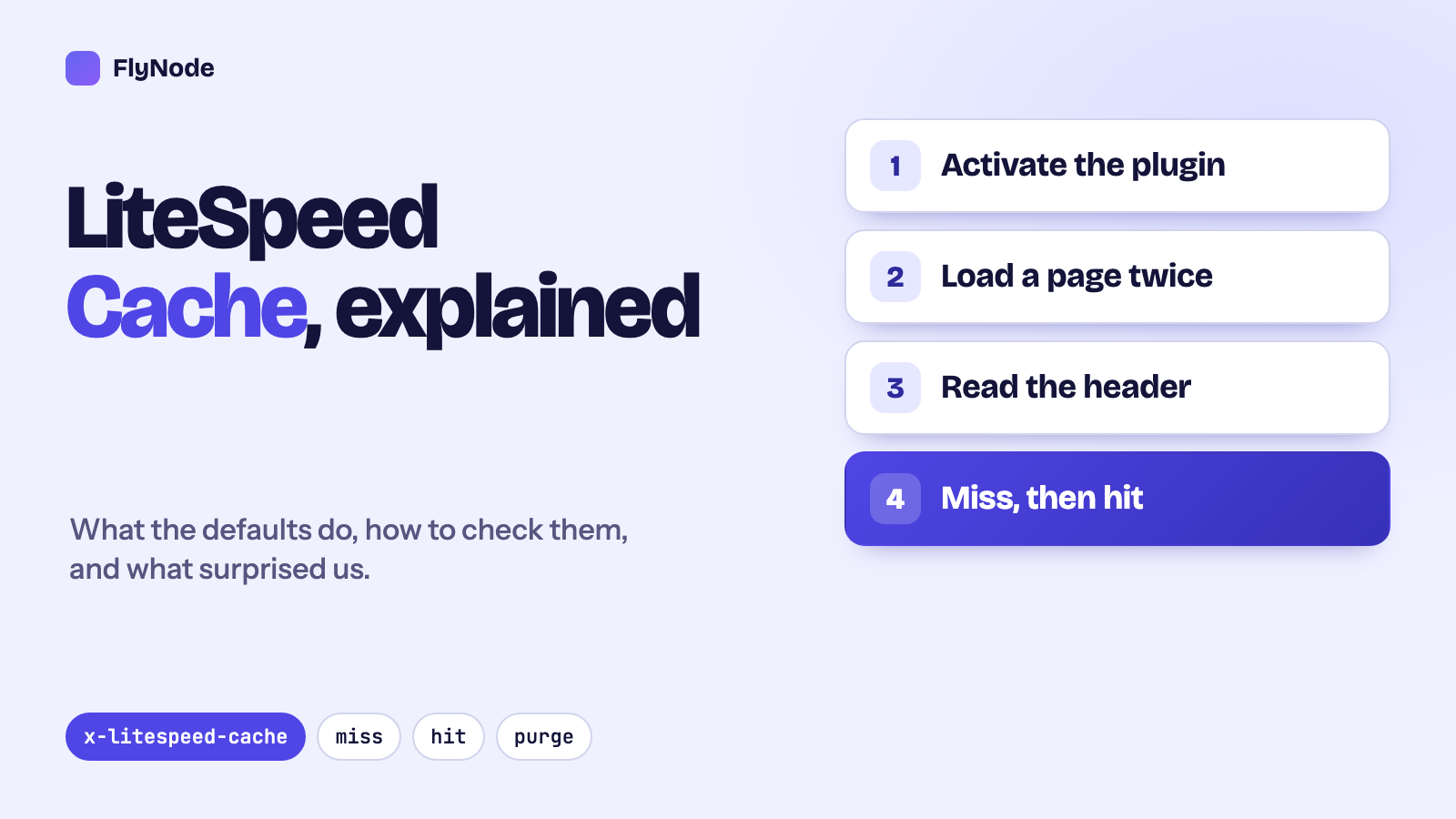
You do not need a dashboard for this. Open your site in a private window, press F12, go to the Network tab, reload, and click the first request. Look for these response headers. Or run this from any terminal:
curl -s -o /dev/null -D - https://your-site.example/ | grep -i x-litespeedOn a page that is not cached yet you will see something like this:
x-litespeed-cache-control: public,max-age=604800
x-litespeed-cache: miss
Run it again and the second line changes to x-litespeed-cache: hit. That is the whole check. A miss followed by a hit means the page is being stored and served from the cache.
There is also an x-litespeed-tag header on the miss. It lists labels such as the page type and the post number. You can ignore it, but it is how purging works, which we come to below.
How much faster is a hit?
On our bare test site, over localhost on a laptop, a miss took roughly 20 to 50 milliseconds and a hit took about one. Your real site has a theme, plugins and a network between you and it, so the numbers will be bigger on both sides. The gap is the point: a hit skips PHP and the database completely.
What the defaults do
These are the plugin's own defaults, read from a fresh install of LiteSpeed Cache 7.9.1, the version we got when we tested. FlyNode downloads the latest stable release, so yours may be newer.
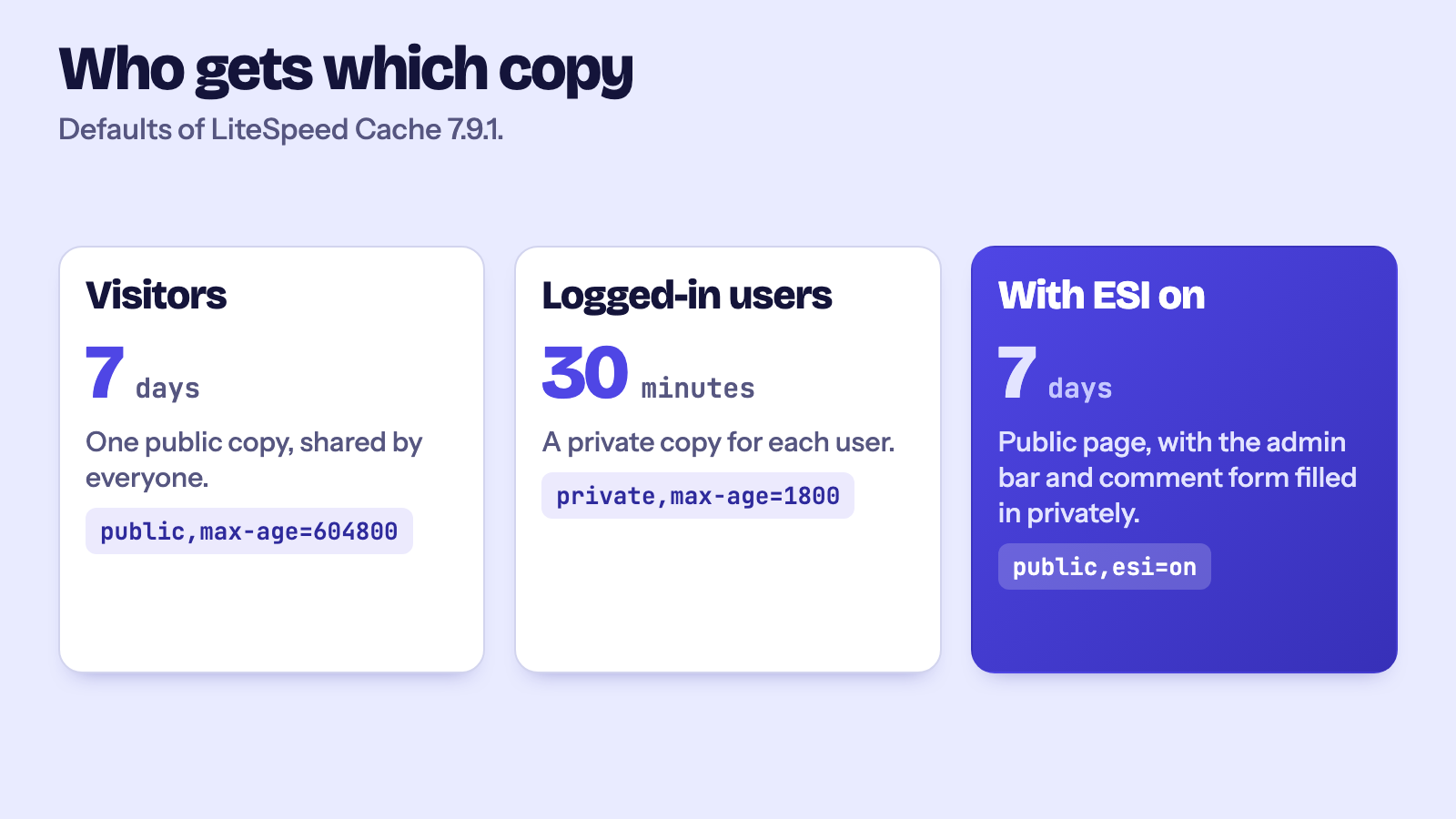
- Public pages (visitors who are not logged in) are cached for 7 days, 604800 seconds. The front page, feeds and REST API responses use the same 7 days.
- Private pages (logged-in users) are cached for 30 minutes, 1800 seconds.
- Not found pages (404) are cached for one hour.
- The login page is not cached, and neither are POST requests. We saw
no-cacheon both. - A separate cache for mobile is off, so phones and desktops share one copy of each page.
- Browser caching, ESI and the plugin's own object cache are all off until you turn them on.
Seven days sounds long, and it is only safe because the cache is emptied when content changes. If you have a page that must always be fresh, give it a shorter lifetime or keep it out of the cache (see the Excludes tab below).
Public and private cache
This is the part people find confusing, so here is what we saw. A visitor who is not logged in gets the public copy. Everyone sees the same page, so one stored copy serves them all.
A logged-in user cannot share that copy, because their page may show their name, their admin bar or their cart. So the plugin keeps a private copy for them. We logged in, loaded a page twice, and got private,max-age=1800 with a miss, then hit,private. Private copies are per user and expire quickly, which is why they are far less effective than public ones. For most sites that is fine, because most traffic is not logged in.
ESI: public pages with private holes
ESI stands for Edge Side Includes. It lets a page be mostly public with small private pieces punched into it. The page itself is cached for everyone, and the personal bits, such as the admin bar or the comment form, are fetched separately and cached privately.
It is off by default. We turned it on and loaded a post as a logged-in user. The page came back marked public,max-age=604800,esi=on, with two ESI blocks inside: the comment form and the admin bar. The same page for a visitor who was not logged in had no blocks at all, because it needs none.
When is that worth it? When logged-in users are a big share of your traffic, such as a membership site or a shop where people stay signed in. The plugin also ships support for WooCommerce. We did not test a cart or checkout in this run, so if you run a shop, test the cart, checkout and account pages in a private window before you rely on it.
Purging: what leaves the cache, and when
Cached pages are removed by tag. Every stored page carries labels from the x-litespeed-tag header, and when you edit something, WordPress sends a purge list naming the labels to remove. You never delete a file by hand.
We edited one post through the REST API while five pages were cached: the home page, a page, the post, a second post and the category archive. The server answered with a purge header naming the post itself, its category, the author archive, the post type archive, the front page, the home page, a date archive, the REST responses, and the recent posts widget. Afterwards all five pages were a miss.
That surprised us. We expected only the post and its archives to go. The reason is a default called All pages with Recent Posts Widget, which is on. The default theme has a recent posts block, so every page that shows it can be out of date after an edit, and the plugin removes all of them.
This is the safe choice, and on a small site it costs nothing. On a large site with a busy sidebar it means every edit empties a lot of the cache. You can tune it on the Purge tab of the plugin settings, which lists what to purge when a post is published or updated. Turn rules off one at a time, and only if you are willing to accept an old page for a while.
You can always empty everything with Purge All - LSCache in the plugin's Toolbox.
Edits made from the command line do not purge
One thing we noticed: we updated a post with wp post update and the cached pages stayed exactly as they were. The purge instruction travels in an HTTP response header, and a command line tool has no response to put it in. If you change content with WP-CLI or a script, press Purge All afterwards. The same applies to a bulk import.
Ad clicks and tracking parameters
This is the finding we think matters most if you run ads. Links from Facebook, Google and email campaigns carry extra values on the end of the address: fbclid, gclid, utm_source and friends. The plugin writes rules for these into .htaccess, with the intent of ignoring them when it looks up a page.
In our test they were not ignored. The home page was cached and fast. Then we requested it with ?fbclid=A1, and then ?fbclid=B2, and both were a miss. The same happened with gclid, with utm_source and utm_campaign together, and with _ga. Each distinct address got its own cache entry. Repeating the exact same address was a hit.
What that means for you: the first person to arrive through each unique click ID gets the uncached version, the one WordPress builds from scratch. Everyone after them on that exact address gets the cached one. We did not find out why the rules had no effect on this stack, so we are reporting what we saw and not promising a fix.
The practical advice is simple. Look at your landing page's uncached speed, because that is what many ad visitors really get. Keep the page light, and do not assume the cache will rescue a heavy one.
The settings worth knowing
Open LiteSpeed Cache in WP-Admin. Four places matter, and the rest can stay as they are.
- TTL: how long public pages, private pages, the front page, feeds and REST responses are kept. Shorten the public time if your content changes often and you do not trust the purge rules to catch it.
- Purge: what is removed when you publish or update. Leave it alone until you have a reason.
- Excludes: addresses, cookies, user agents and categories that must never be cached publicly. Add anything personal here: a quote form result, a dashboard, a page that reads from the visitor's cookie.
- ESI: turn it on only if logged-in traffic is a large share.
On the first Cache tab there are also switches for caching logged-in users, commenters and REST API calls. They are on by default, and the plugin warns that turning them off may hurt performance.
Before you rely on it
- Make sure LiteSpeed Cache is activated under Plugins.
- Request your home page twice and confirm miss, then hit.
- Do the same for one article and one page with a form.
- Open the cart, checkout and account pages in a private window and make sure they show the right thing for you. Add any that do not to Excludes.
- Edit a post, reload the home page, and confirm the change is there.
- Test your main ad landing page with a made-up
?gclid=test123on the end.
Frequently asked questions
Do I have to install or configure LiteSpeed Cache on FlyNode?
No. On a new site it is installed when the app first starts and switched on the first time the site loads after the WordPress installer. A site created earlier may need one click on Activate under Plugins. You can change the settings in WP-Admin whenever you like.
Why does my first request say miss?
Because nothing has been stored yet. The first visitor to a page makes WordPress build it, and the server keeps the result. After that the page is a hit until it expires or is purged.
Why is my logged-in view slower than what visitors see?
You get the private copy, which is stored per user and kept for only 30 minutes. Visitors share one public copy for 7 days. For a quick comparison, check your site in a private window.
How do I clear the cache?
Editing a post clears the pages that show it. To clear everything, use Purge All in the plugin's Toolbox, and do it after changes made with WP-CLI or a script.
Is the Redis container the same thing as this cache?
No. LiteSpeed Cache stores whole pages. Redis stores small pieces of data that WordPress asks the database for. They work at different layers, and the next article in this series covers Redis.
Next steps
If you have not deployed WordPress on FlyNode yet, start with the deployment walkthrough, or read why we picked this server in OpenLiteSpeed vs Nginx for WordPress. When you are ready to try changes safely, make a staging copy first. Or pick a size in the WordPress pricing section and see the headers for yourself.
Get new articles in your inbox
New guides on WordPress, tracking and automation, once or twice a month. No spam, unsubscribe any time.